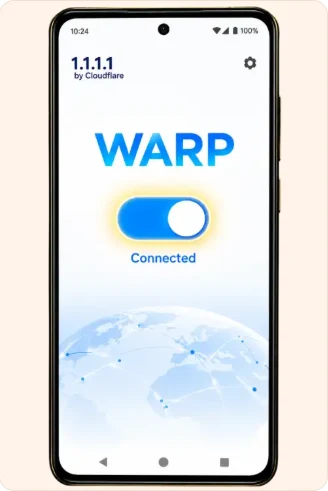
Choose the device in your hand
Open the section labelled for your operating system. An iPhone uses the App Store and Android uses Google Play for the connection utility illustrated here. The screenshots follow the sequence for 1.1.1.1 with WARP. This utility is separate from the account service and is optional for reading the website.
Read the permission screen
A connection utility can ask the operating system to add a VPN configuration. Check the application name and read the prompt before making a choice. On a shared or managed device, an administrator may control connection settings. Leave the configuration in place if you are unsure who manages it.
Return to the browser
After checking the connection indicator, reopen the original page in the browser where you began. Change one setting at a time so you can tell which change affected the result. If the new connection performs worse, disconnect the utility and compare the same page on your previous connection.
Match the sequence, not the colours
Store buttons and system prompts can look different after a software update. Follow the publisher name, the action requested and the connection state shown on your own device. If the screen refers to a different developer, stop there and return to your store search rather than following an unfamiliar install prompt.
Connection walkthrough
iPhone · Four steps
- Open the App Store.
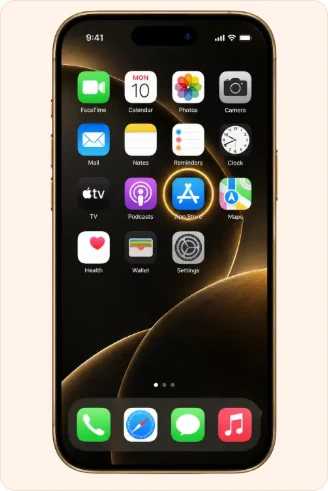
- Find 1.1.1.1 by Cloudflare and check the developer before installing.
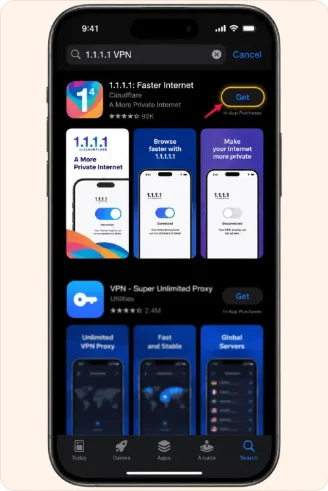
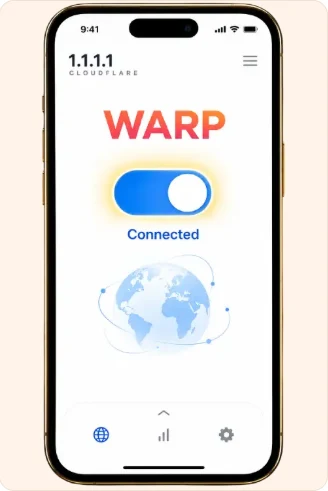
- Open the app, switch on WARP and review the VPN permission prompt.
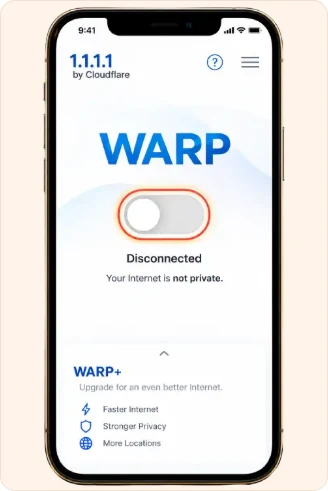
- Check for Connected, then return to the browser.
Android · Four steps
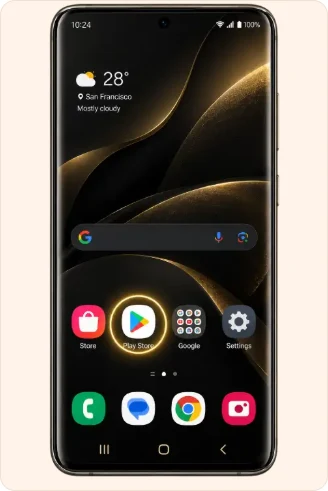
- Open Google Play.
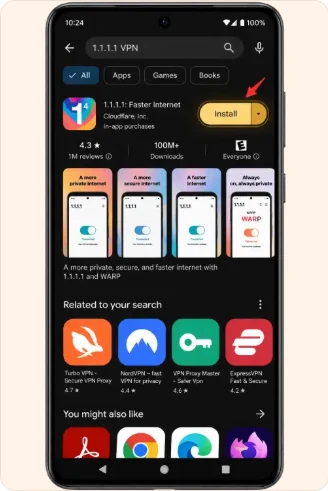
- Find 1.1.1.1 by Cloudflare and check the developer before installing.
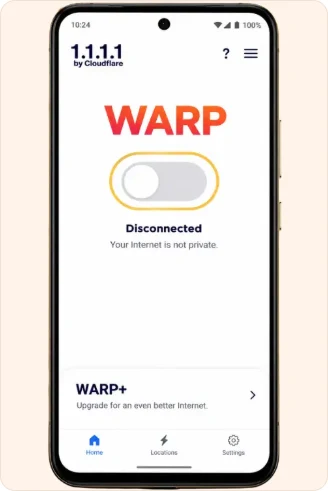
- Open the app, switch on WARP and review the VPN permission prompt.
- Check for Connected, then return to the browser.